Standups
A short daily check-in your team writes in their own time. You skip the meeting and still know what is stuck.
This feature is in beta. If you do not see it, ask your admin to turn it on for your organization.
In this guide you’ll
- Write a daily update in under two minutes
- Add work you already did with one tap
- Raise a blocker so it does not get lost
- Know exactly who can read what you write
Write your daily update
Section titled “Write your daily update”Step 1: Open today’s standup
Open Standups in the sidebar, under Check-ins. Today’s standups are at the top. Choose the one for your project.
Screenshot: The Standups list. Bluepeak shows Not posted.1The Standups list. Bluepeak shows Not posted. Step 2: Write your update
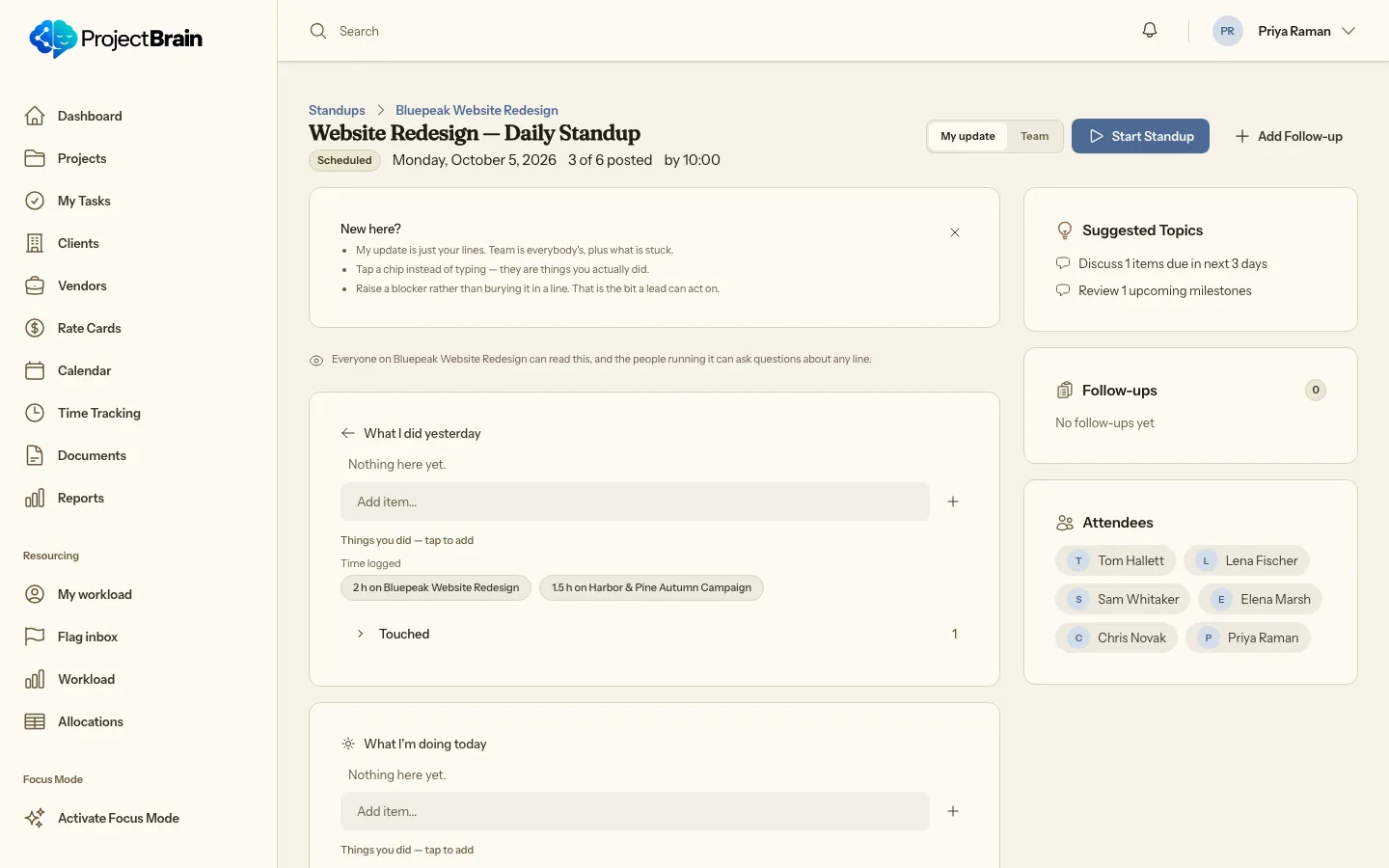
Type a line under Yesterday and Today. Your update saves as you type, so there is no submit button. Writing your first line marks you as posted.
Screenshot: Writing under Yesterday.2Writing under Yesterday. Step 3: Add things you did with one tap
Under each input you see suggestions from your tasks, time entries and calendar. Tap one to add it as a line. Only you see suggestions until you tap one.
Screenshot: Suggestion chips under Yesterday.3Suggestion chips under Yesterday. Step 4: Raise a blocker
Choose Raise a blocker, describe it, and pick who is on it. “Nobody yet” is fine. The blocker stays on the facilitator’s list until somebody clears it.
Screenshot: Raising a blocker.4Raising a blocker.
What the lead sees
Section titled “What the lead sees”The Team view lists who has not posted yet, then open blockers, oldest first, then everybody’s updates. A blocker open three working days or more reads “Open 4 days” in amber, so it stands out without colour too.
Who can read it
Section titled “Who can read it”The page says it plainly before you write: your project’s members and facilitators can read updates. A 1:1 standup is visible only to the people in it. Owners and admins cannot read it either.